Approval of Change Requests
Overview
Employees who do not have at least the “Employee in a Position of Trust” permission may not independently change their own time entries; instead, they can only request changes. This applies to new entries as well as to changes or deletions of existing time entries.
Requests are submitted via the self-service portal. The section on Submitting a Change Request in TimePunch SelfService describes how this works.
Designate Approvers
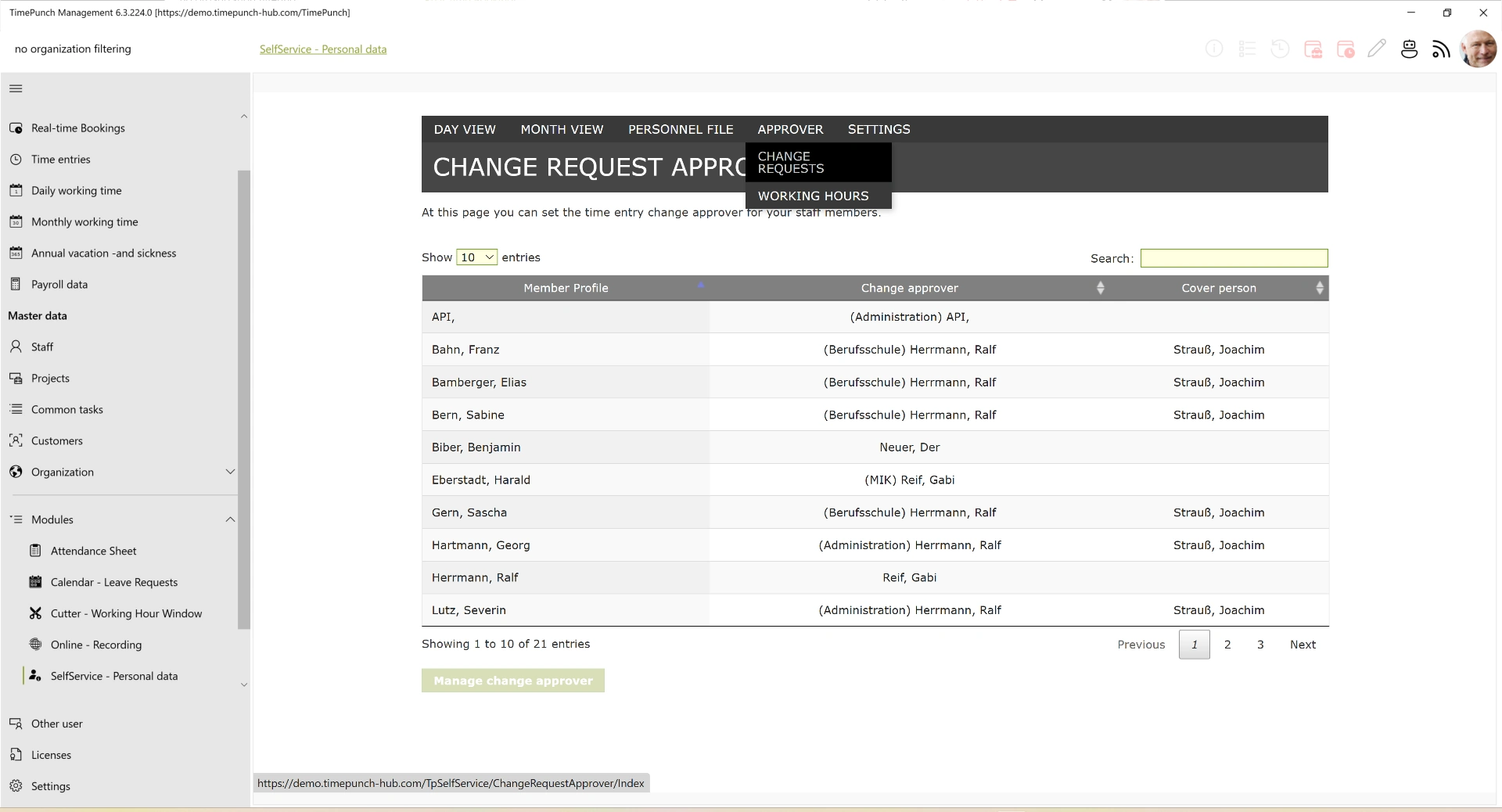
By default, change requests are approved by the direct supervisor. However, the designated approver can be adjusted via the Self-Service module. Administrators and managers can specify there which person is authorized to approve an employee’s work hours.
Approve a change request
After the approver has received a change request via email, it can be approved or rejected in TimePunch Management.
To do this, the number of pending change requests is displayed to the approver in the top-right corner of the information bar via the pencil icon.

Selecting the pencil icon displays a list of all pending change requests.
When a change request is selected, the request opens, and the approver sees both the proposed changes and the original data.
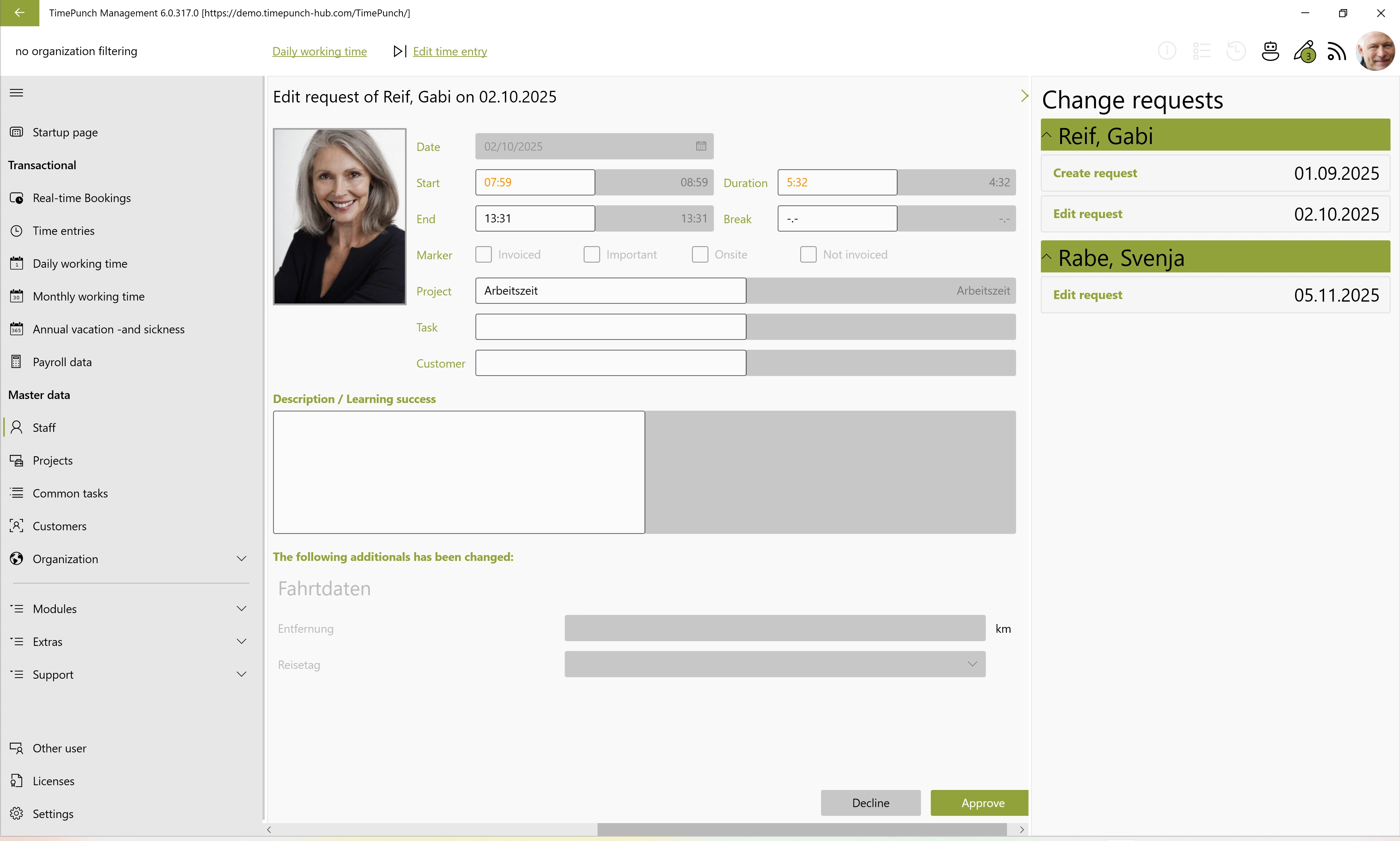
Clicking the “Approve” button confirms the request, and the employee’s changes are applied in TimePunch. In return, the requester receives a confirmation email stating that the change has been applied.
If the request is not approvable, it can be rejected by clicking the “Reject” button. In this case, a dialog box opens in which the reason for rejection must be entered. The reason is then communicated to the requester via email.